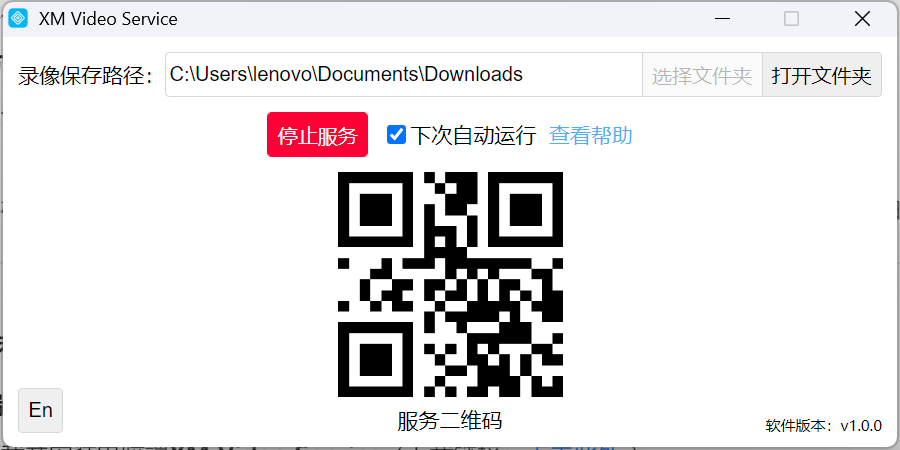
To enhance the convenience of managing recording functions (during the packaging process), we have launched the Multi-Device Collaborative Recording Storage feature. Below are the update details and operation guide:
I. Feature Updates
-
Multi-Device Collaborative Storage
-
One computer can coordinate with multiple mobile phones. The computer serves as the recording storage station, where all videos recorded by the phones are stored locally on the computer for centralized management.
-
Network Requirements
-
Each phone and computer must be connected to the same WiFi network (consistent IP segment) to enable shared recording storage.
Common Issues and Solutions
**Connection Timeout Prompt ****[error]request:fail url not in domain list...**
-
Cause: The computer firewall is blocking port access.
-
Solution:
-
Windows: Control Panel → Firewall → Allow an app through firewall → Add XM PrintRec (check Private/Public networks).
-
macOS: System Settings → Privacy & Security → Firewall → Add XM PrintRec.
-
Connection Method
-
Double-click to open the desktop version of XM PrintRec and enable the service.
)
- On the mobile side, enter the scan-to-pack page, click the Scan to Connect button, and scan the Service QR Code on the computer to complete the connection between the phone and the computer.
)
For the XM APP/Mini Program operation flow, please >>Click to view
II. Video File Naming Rules
-
XM Main Account Operations:
Type-StoreID-OrderNumber-TrackingNumber-Timestamp. -
XM Sub-Account Operations:
SubAccount-Type-StoreID-OrderNumber-TrackingNumber-Timestamp.
III. Notes
-
Network Stability: Ensure stable WiFi signal to avoid recording failures due to connection interruptions.
-
Computer Storage Space: Regularly clean up computer storage to prevent recording failures due to insufficient space.
-
Multi-Folder Categorized Storage
-
If you need to save videos to different folders, you can run multiple instances of XM PrintRec simultaneously on the computer (double-click to launch multiple instances). Set independent save paths for each instance, and connect the phone by scanning the corresponding QR code. Download Links
-
Desktop XM PrintRec: Click to Download
-
Mobile APP/WeChat Mini Program: Click to Download
)


Comments
0 commentsNo comments yet — be the first to speak
If this piece sparked a thought, leave a comment and share your take.